The Windows Vista Codec Package installation supports 20 localizations. The default is English and includes support for the following other languages; Arabic, Chinese.
Enable Administrator account OR Reset Admin account password Offline in Windows 8, Windows 7 or Windows Vista - wintips. In a previous article we explained how to enable the hidden Administrator account from inside Windows using the command prompt.
In this article, we explain how to enable the Administrator account or Reset account’s (including Administrator’s) password using an offline method. The offline method to enable Windows Administrator account is useful in the following cases: a. You have forgotten your Administrator’s (Admin) account password. You want to Enable the hidden Administrator account. You want to give your account administrative privileges (add your account to Administrators Group). You cannot enable the Administrator account from inside Windows.
This Solution to activate the full admin account is suitable for: Windows 10 Pro, Windows 10 Enterprise, Windows 10 Home, Windows 8.1, Windows 8.1 Enterprise, Windows. How to Change a Guest Account to an Administrator in Windows. Guest accounts on Windows can be changed to Administrators, granting them full access to the software. How to Create and Manage a Hidden Account in Windows 7. Have you ever wanted to create a hidden account on Windows 7? Read on to find out how! Open notepad by going.
Step 1: Download the Offline Windows Password & Registry Editor, Bootdisk / CD1. You can download the Offline Windows Password & Registry editor (boot disk) utility from here. Go to your download location and right click on .
Right click on “cd. Image file and burn it to a CD. Step 3: Working with Offline Password & Registry editor Boot CD. Insert the Offline Password & Registry editor Boot CD in the CDROM drive.
Boot you computer from the Boot CD. At the first screen press . At “Step ONE” select the partition (by number) where Windows are installed (e. At “Step TWO” you must specify the path to the registry. Leave the detected registry path (C: \Windows\System.
Config) and press “Enter”. At “Select which part of registry to load” question, type “1” (Password reset) and press “Enter”. At “Step THREE”, type “1” (Edit user data and passwords) and press “Enter”.
At the next screen, you can view the list of all the accounts on your computer. Type the Username of the account that you want to perform changes (e.
Administrator) and press “Enter”. At the next screen, read carefully your available options and type the corresponding number according to the operation you want to perform and then press “Enter”.
User Edit Menu – Available options: Type “1”: if you want to Clear (set Blank) the selected account’s password. Type “2”: if you want to set a new password to the selected account.*Notice*: I prefer to change account’s password from inside Windows , after using option”1” to clear the previous password. Type “3”: if you want to promote the selected account to Administrator. When finished making your changes type “!” (Shift + 1) and press “Enter” to quit editing selected user. At next screen press “q” to quit the offline password editor utility. At “About to write file(s) back” question, type “y” (yes) and press “Enter”. If you want to try again, if the process somehow failed, type “n” and press “Enter”.
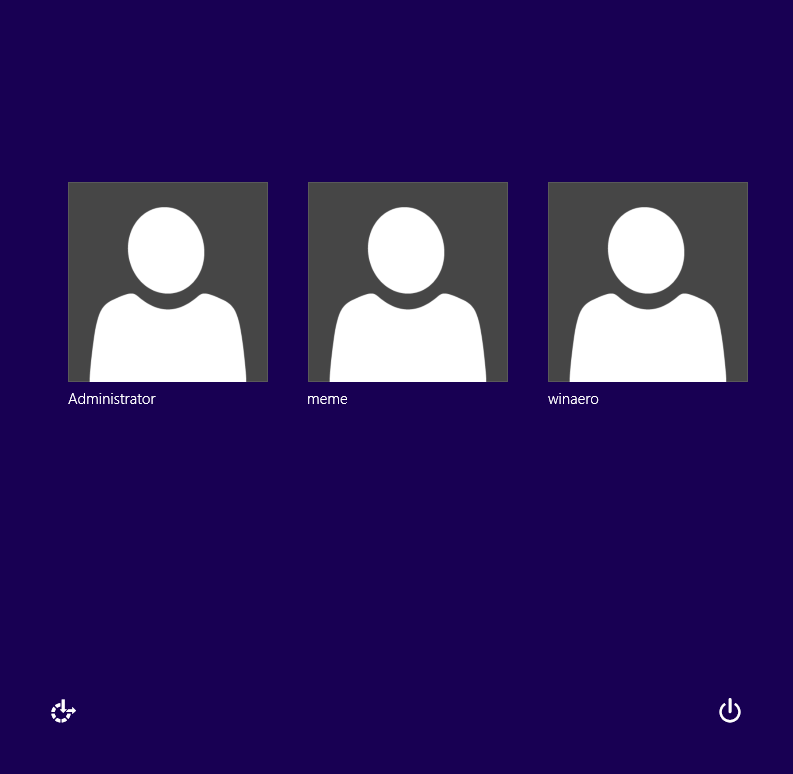
Press “CTRL+ALT+DEL” to restart your computer. Pull out the Boot CD from your CD/DVD drive and boot to Windows. Normally now you should see the administrator account listed on the logon screen. From the menu that appears, choose Sign Out to sign out from the current user and login as Administrator or click Administrator to switch to that account.
We have experience with this software and we recommend it because it is helpful and useful). If this article was useful for you, please consider supporting us by making a donation. Even $1 can a make a huge difference for us in our effort to continue to help others while keeping this site free.


/http%3A%2F%2Fic2.joydownload.com%2Fcontent%2Fthumbs%2F38%2FmUmqnenccnezGf2SZzreC0YwIssw8uxhOHaymGv64jos~FA0zkIN6QM7dB0pxx2Q3uhjI87MsPN4GEEZM0H0dATAEw__.jpg)
/http%3A%2F%2F11986-presscdn-0-77.pagely.netdna-cdn.com%2Fwp-content%2Fuploads%2F2007%2F10%2Fadd-new-key.jpg)
/http%3A%2F%2Fi.ytimg.com%2Fvi%2Fit3fI28fgto%2Fhqdefault.jpg)
/http%3A%2F%2Fwww.att.com%2Fecms%2Fdam%2Fatt%2Fconsumer%2Fhelp%2Fimage%2Fphone-install.png)